From Zero to Stateful: Building a PowerShell Chat Completion with Microsoft Foundry
Did you know that large language models don’t actually remember your conversations?
Every time you chat with a LLM, it feels continuous and stateful but under the hood, each response is generated from scratch. Any “memory” you experience is carefully reconstructed by the application.
In this post, I’ll walk you through building a PowerShell chat completion using Microsoft Foundry, and we’ll unpack exactly how chat history works, where it’s stored, and why the LLM remains fundamentally stateless.
What We Are Building?
We’ll use an LLM deployed in Microsoft Foundry and interact with it through a PowerShell script to create a simple chat experience. This example will clearly demonstrate how conversation history is managed outside the model and passed explicitly with each request.
Here is how the end result will look like:
Let’s dive into the architecture.
Architecture
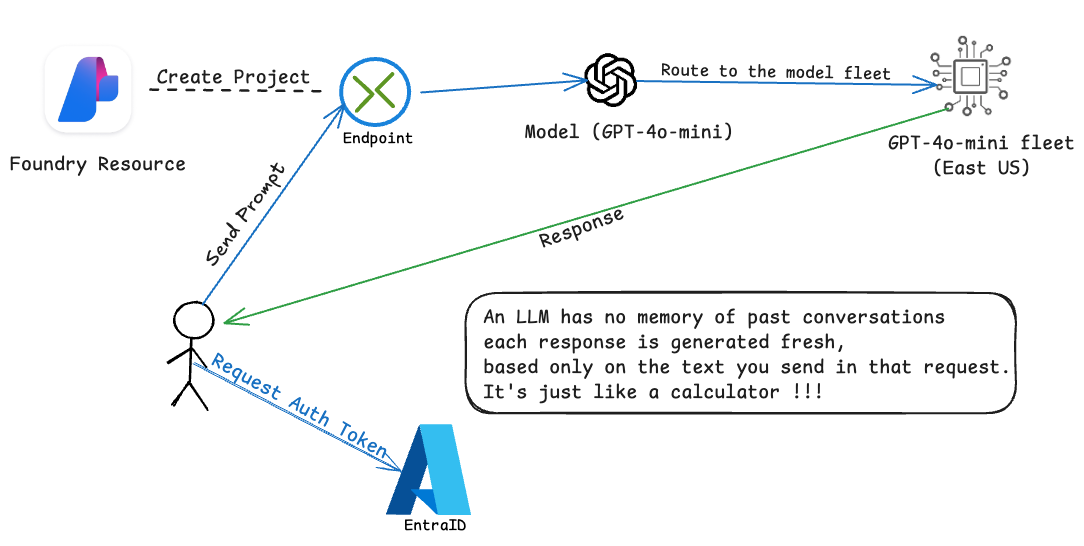
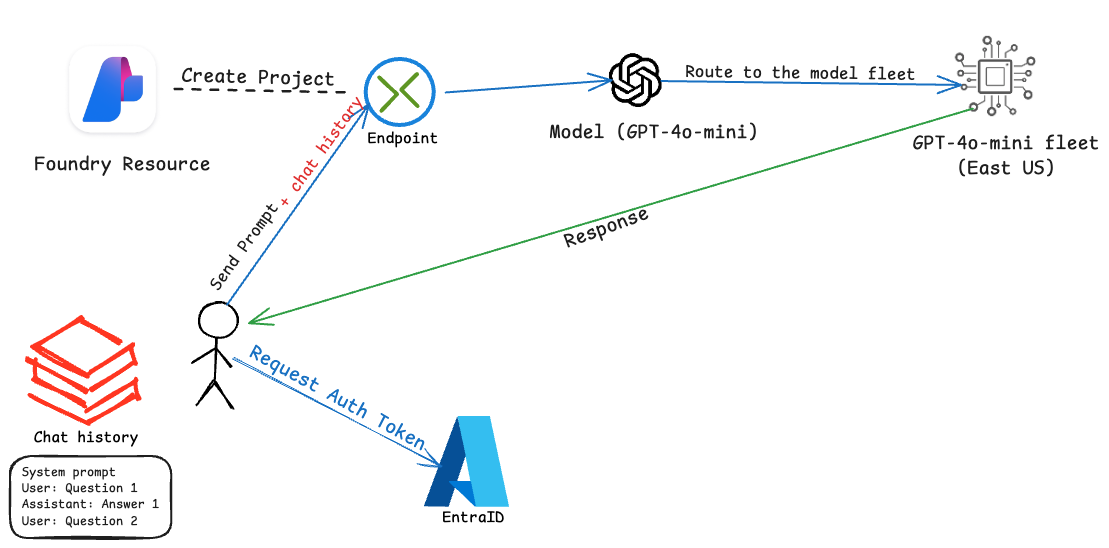
Here is the flow of operations:
- User Send a request for Authentication Token to EntraID
- User send a Prompt to LLM Foundry Endpoint
- Intelligence Routing (Model): A Model is actually a router that going to route your prompt to the least busy available Model fleet at Microsoft Cluster.
- Model fleet (Standard/Global/etc): Here is where the magic happens, Model fleet will inference the prompt and output the reponse to you.
Prerequisites
-
An Azure subscription with appropriate permissions
The Stack
- Microsoft Foundry
Phase 1 Deployment: Microsoft Foundry
In this phase, we will provision the "brain" (Microsoft Foundry) and configure chat completion authentication.
1. Create Foundry Resource (The Backend)
- Create new Resource Group called
rg-foundry-xxxxx. Recommended the location to be in East US or East US2. Because that's where the Model fleet is available the most. - Create new Microsoft Foundry Resource
Resourc name :foundry-eus-xxxxx
Region: East US2 or the same as Resource Group location
Default project name: proj-xxxxx
2. Role Assignment
- Go to Foundry Resource just created > Access control (IAM) > Role assignments
- Click
+Add>Add role assignment - Search for
Cognitive Services OpenAI User> ClickNext - Click
+Select members> SelectYour User Account> ClickReview + assign
Note:
Now your user accounta has permission to Create a completion for the chat message from a chosen model.
3. Deploy LLM (Large Language Model)
-
Go to Foundry Resource > Overview > Go to Foundry Portal
-
Make sure you have
New Foundrytoggle on. This will bring you to the New Foundry Portal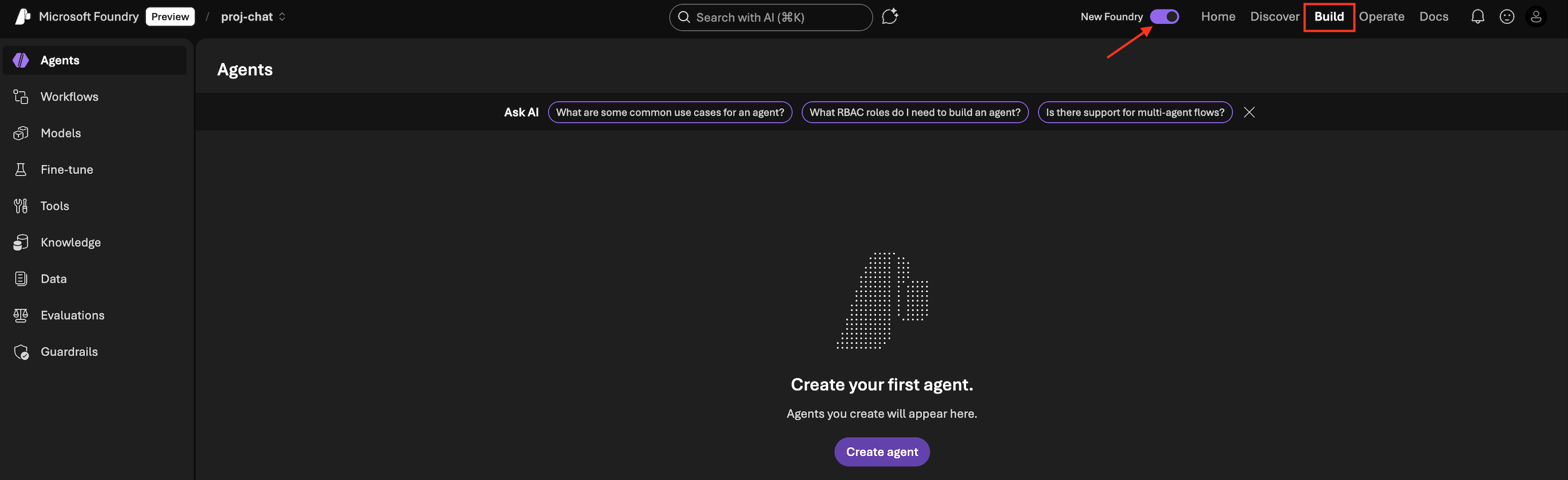
- Click
Build - On the left panel: Select
Models>Deploy a base model - You will see that Foundry has more than 11K models available. Search for
gpt-4o-miniand select it. - Click
Deploy>Custom settings> Deploy
Deployment type:
There are several deployment types, by default it will create Global Standard. If you want to know more about other options. Deployment types for Microsoft Foundry Models
4. Endpoint
- On the left panel: Select
Models - Click on tab
Detailsnext to Playground tab - Copy Target URI
Endpoint & Key:
This endpoint is the target URI that we will do the REST API call to. There are options for authentication to consume the API. Either with the Key or with RBAC. In this one, we will use RBAC, so we won't do anything with the Key.
In Phase 1, you have successfully created Microsoft Foundry Resource, configured Permission for your account and deploy Language model. With his in place, you are now ready to begin building and testing chat interactions.
Phase 2: PowerShell Chat Completion (The FrontEnd)
In Phase 2, we’ll use PowerShell to interact with the language model deployed earlier.
1. Basic Chat Completion API Call
Here is the plan.
-
First we create a PowerShell script to send Prompt to LLM. Prompt will be contained 2 messages in JSON format.
- System message [Pre-defined in the script]
- User message [User input]
-
In the script we will use Azure CLI to authenticate to Azure and aquire the Authentication token.
- Prepare API Payload
- API Call to Foundry Model Endpoint
GPTCompletion.ps1
    # 1. Foundry Endpoint and model
    $endpoint = "[TARGET URI FROM PREVIOUS STEP]"

    # 2. Initialize System Prompt
        $messages = @(
            @{ role = "system"; content = "You are a helpful assistant." }
        )


    # 3. Get User Input
    $userInput = Read-Host "`nYou"
    if ([string]::IsNullOrWhiteSpace($userInput)) { return }

    # Append User Message
    $messages += @{ role = "user"; content = $userInput }

    # 4. Get Auth Token (Using Azure CLI)
    $tokenResponse = az account get-access-token --resource https://cognitiveservices.azure.com/ | ConvertFrom-Json
    $headers = @{
        "Authorization" = "Bearer $($tokenResponse.accessToken)"
        "Content-Type"  = "application/json"
    }

    # 5. Prepare Payload
    $body = @{
        messages = $messages
        max_tokens = 800
        temperature = 0.7
    } | ConvertTo-Json -Depth 10

    # 6. Call API
    try {
        $response = Invoke-RestMethod -Uri $endpoint -Method Post -Headers $headers -Body $body
        $GPTReply = $response.choices[0].message.content

        # Display Reply
        Write-Host "`GPT: " -NoNewline -ForegroundColor Green
        Write-Host $GPTReply
    }
    catch {
        Write-Error "Request failed: $_"
    }
This is what it's like what you trying to run it.
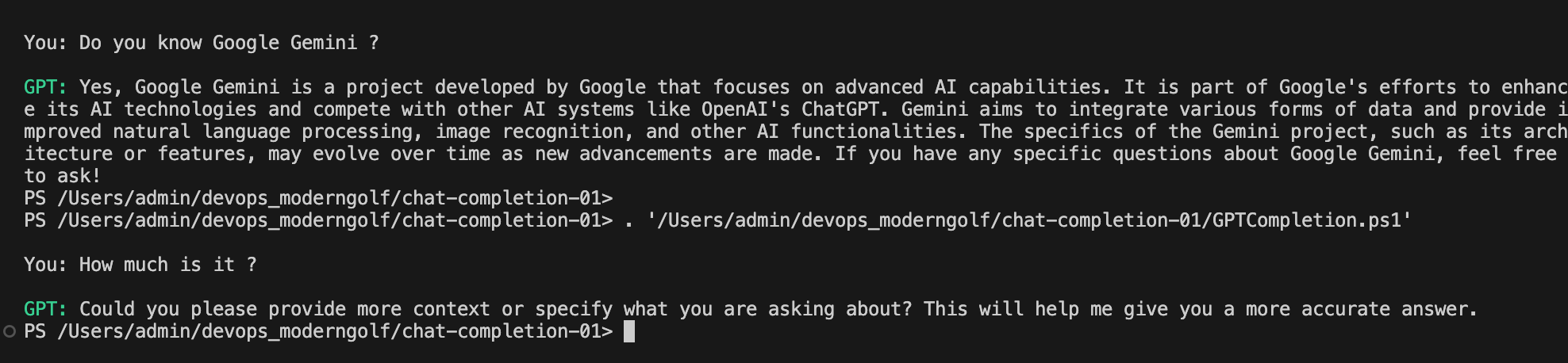
What we learn:
An LLM has no memory of past conversations. Each response is generated fresh, based only on the text you send in that request. If you don’t send it again, it doesn’t “remember” it.
2. Chat Completion with memory (Session-Based Memory)
Basically, LLMs don’t remember conversations. Applications remember conversations and remind the LLM every time. So we will build a conversation memory and send to LLM.
Let's build the memory 
Modify the section # 2. Initialize System Prompt to the following
############################
# 2. Initialize or Load History
if (Test-Path $historyFile) {
    Write-Host "Loading existing conversation history..." -ForegroundColor Cyan
    $messages = Get-Content $historyFile | ConvertFrom-Json
} else {
    Write-Host "Starting a new conversation..." -ForegroundColor Cyan
    $messages = @(
        @{ role = "system"; content = "You are a helpful assistant." }
    )
}
############################
Adding this section just after Show GPT Reply
############################
# 7. Update History and Save to File
$messages += @{ role = "assistant"; content = $GPTReply }
$messages | ConvertTo-Json -Depth 10 | Set-Content $historyFile
Write-Host "`n[History saved to $historyFile]" -ForegroundColor Gray
############################
GPTCompletionWithHistory.ps1 (COMPLETE SCRIPT)
# 1. Configuration & Persistence
$historyFile = "chat_history.json"
$endpoint = "[TARGET URI FROM PREVIOUS STEP]"

############################
# 2. Initialize or Load History
if (Test-Path $historyFile) {
    Write-Host "Loading existing conversation history..." -ForegroundColor Cyan
    $messages = Get-Content $historyFile | ConvertFrom-Json
} else {
    Write-Host "Starting a new conversation..." -ForegroundColor Cyan
    $messages = @(
        @{ role = "system"; content = "You are a helpful assistant." }
    )
}
############################

# 3. Get User Input
$userInput = Read-Host "`nYou"
if ([string]::IsNullOrWhiteSpace($userInput)) { return }

# Append User Message
$messages += @{ role = "user"; content = $userInput }

# 4. Get Auth Token (Using Azure CLI)
$tokenResponse = az account get-access-token --resource https://cognitiveservices.azure.com/ | ConvertFrom-Json
$headers = @{
    "Authorization" = "Bearer $($tokenResponse.accessToken)"
    "Content-Type"  = "application/json"
}

# 5. Prepare Payload
$body = @{
    messages = $messages
    max_tokens = 800
    temperature = 0.7
} | ConvertTo-Json -Depth 10

# 6. Call API
try {
    $response = Invoke-RestMethod -Uri $endpoint -Method Post -Headers $headers -Body $body
    $GPTReply = $response.choices[0].message.content

    # Show GPT Reply
    Write-Host "`nGPT: " -NoNewline -ForegroundColor Green
    Write-Host $GPTReply

    ############################
    # 7. Update History and Save to File
    $messages += @{ role = "assistant"; content = $GPTReply }
    $messages | ConvertTo-Json -Depth 10 | Set-Content $historyFile
    Write-Host "`n[History saved to $historyFile]" -ForegroundColor Gray
    ############################
}
catch {
    Write-Error "Request failed: $_"
}
Now try to run the script again and ask the same questions.
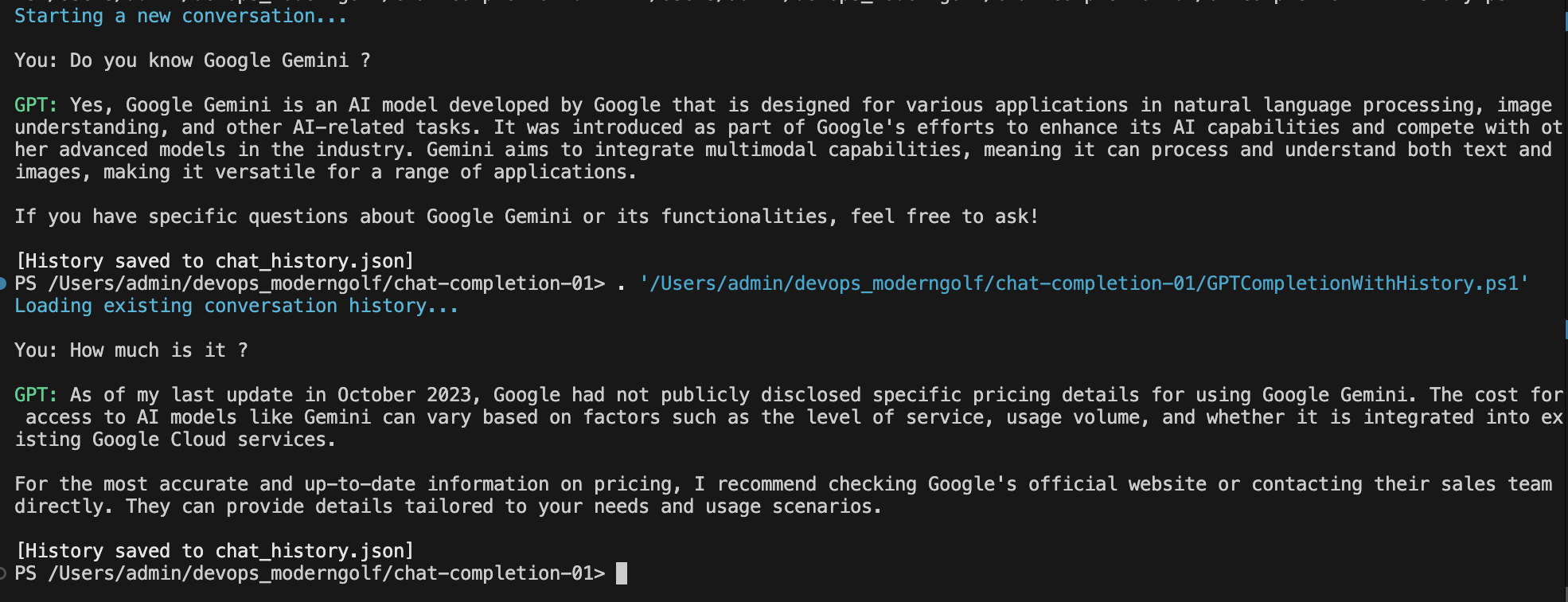
You can see that now, LLM is able to have a continue conversation with us.
Let's look into what's in chat_history.json file we created.
[
  {
    "content": "You are a helpful assistant.",
    "role": "system"
  },
  {
    "content": "Do you know Google Gemini ?",
    "role": "user"
  },
  {
    "content": "Yes, Google Gemini is an AI model developed by Google that is designed for various applications in natural language processing, image understanding, and other AI-related tasks. It was introduced as part of Google's efforts to enhance its AI capabilities and compete with other advanced models in the industry. Gemini aims to integrate multimodal capabilities, meaning it can process and understand both text and images, making it versatile for a range of applications.\n\nIf you have specific questions about Google Gemini or its functionalities, feel free to ask!",
    "role": "assistant"
  },
  {
    "content": "How much is it ?",
    "role": "user"
  },
  {
    "content": "As of my last update in October 2023, Google had not publicly disclosed specific pricing details for using Google Gemini. The cost for access to AI models like Gemini can vary based on factors such as the level of service, usage volume, and whether it is integrated into existing Google Cloud services.\n\nFor the most accurate and up-to-date information on pricing, I recommend checking Google's official website or contacting their sales team directly. They can provide details tailored to your needs and usage scenarios.",
    "role": "assistant"
  }
]
Gotcha! We send the entire conversation history to the LLM in JSON format with every request, which creates the illusion that the model has memory. In reality, the model only sees the text included in the prompt for that single inference.
As the conversation grows longer, the prompt grows with it. This directly increases token consumption, which leads to:
-
Higher costs
-
Slower response times
-
Hitting context window limits
So the natural question is What do we do about it?
3. Common Strategies to Control Token Usage
- Truncate Old Messages - Keep only the most recent messages in the prompt
- Summarize Conversation History - Replace older messages with a concise summary
- Store Long-Term Context Outside the Prompt - Persist important information externally (DB, cache, vector store)
In this post, we will do the first one. Trucate Old Messages
We need to make sure we have a maximum number of chat history and we need to keep the system prompt, so the way it's responding will be consistent.
How are we going to do that? We could trim chat history to the last 10 messages and we need a logic to keep System Prompt [0]. So we grab only the latest 9 messages.
############################
# 2.1 Trim History to Last 10 Messages
$maxHistory = 10
if ($messages.Count -gt $maxHistory) {
    # Keep the System Prompt [0] It is important for conversation moving forward
    # Then grab only the latest 9 messages
    $messages = @($messages[0]) + @($messages[-($maxHistory - 1)..-1])
}
############################
GPTCompletionWithMaxHistory.ps1 (COMPLETE SCRIPT)
# 1. Configuration & Persistence
$historyFile = "chat_history.json"
$endpoint = "[TARGET URI FROM PREVIOUS STEP]"


# 2. Initialize or Load History
if (Test-Path $historyFile) {
    Write-Host "Loading existing conversation history..." -ForegroundColor Cyan
    $messages = Get-Content $historyFile | ConvertFrom-Json
} else {
    Write-Host "Starting a new conversation..." -ForegroundColor Cyan
    $messages = @(
        @{ role = "system"; content = "You are a helpful assistant." }
    )
}


############################
# 2.1 Trim History to Last 10 Messages
$maxHistory = 5
if ($messages.Count -gt $maxHistory) {
    # Keep the System Prompt [0] It is important for conversation moving forward
    # Then grab only the latest 9 messages
    $messages = @($messages[0]) + @($messages[-($maxHistory - 1)..-1])
}
############################


# 3. Get User Input
$userInput = Read-Host "`nYou"
if ([string]::IsNullOrWhiteSpace($userInput)) { return }

# Append User Message
$messages += @{ role = "user"; content = $userInput }

# 4. Get Auth Token (Using Azure CLI)
$tokenResponse = az account get-access-token --resource https://cognitiveservices.azure.com/ | ConvertFrom-Json
$headers = @{
    "Authorization" = "Bearer $($tokenResponse.accessToken)"
    "Content-Type"  = "application/json"
}

# 5. Prepare Payload
$body = @{
    messages = $messages
    max_tokens = 800
    temperature = 0.7
} | ConvertTo-Json -Depth 10

# 6. Call API
try {
    $response = Invoke-RestMethod -Uri $endpoint -Method Post -Headers $headers -Body $body
    $GPTReply = $response.choices[0].message.content

    # Show Assistant Reply
    Write-Host "`nGPT: " -NoNewline -ForegroundColor Green
    Write-Host $GPTReply

    # 7. Update History and Save to File
    $messages += @{ role = "assistant"; content = $GPTReply }
    $messages | ConvertTo-Json -Depth 10 | Set-Content $historyFile
    Write-Host "`n[History saved to $historyFile]" -ForegroundColor Gray

}
catch {
    Write-Error "Request failed: $_"
}
Conclusion
LLMs don’t remember conversations, applications do.
By understanding how chat history is constructed and sent to the model, you can build AI solutions that are predictable, efficient, and cost-aware. With PowerShell and Microsoft Foundry, even simple scripts can demonstrate the core architectural patterns behind modern AI chat systems.