Serverless, Secure, and Free: Azure Static Web Apps with GitHub CI/CD

Did you know you can publish your website on Azure and take advantage of Azure's global content distribution for free? Additionally, you can automate your content publishing with GitHub CI/CD at no cost.
In this post, I will explain how to host your website on Azure Static WebApp using GitHub CI/CD. It really is simple.
Azure provides several ALWAYS FREE services such as Azure AI Search, Azure Speech, Functions, Static Web App and many more. Each product has certain free limitation you can find it here
Azure Static Web Apps (SWA) is an impressively powerful free service.
- Automate a full CI/CD experience, including 3 preview environments, all within the Free Tier.
- Utilize integrated API with Azure FunctionApp
- Benefit from Azure's global distribution, ensuring your website loads quickly from anywhere.
- Support for dozens of front-end frameworks, including HTML, React, Hugo, and many others.
- Free SSL Certificate
- Custome domain name
What We Are Building
In this post, I will demo how to do the following
- Prepare our web code in GitHub Repo
- Create Azure Static Web App to connect to our Repo
- Deploy our WebApp to SWA with GitHub Action (CI/CD) to Preview Environment and Production.
Overall Process
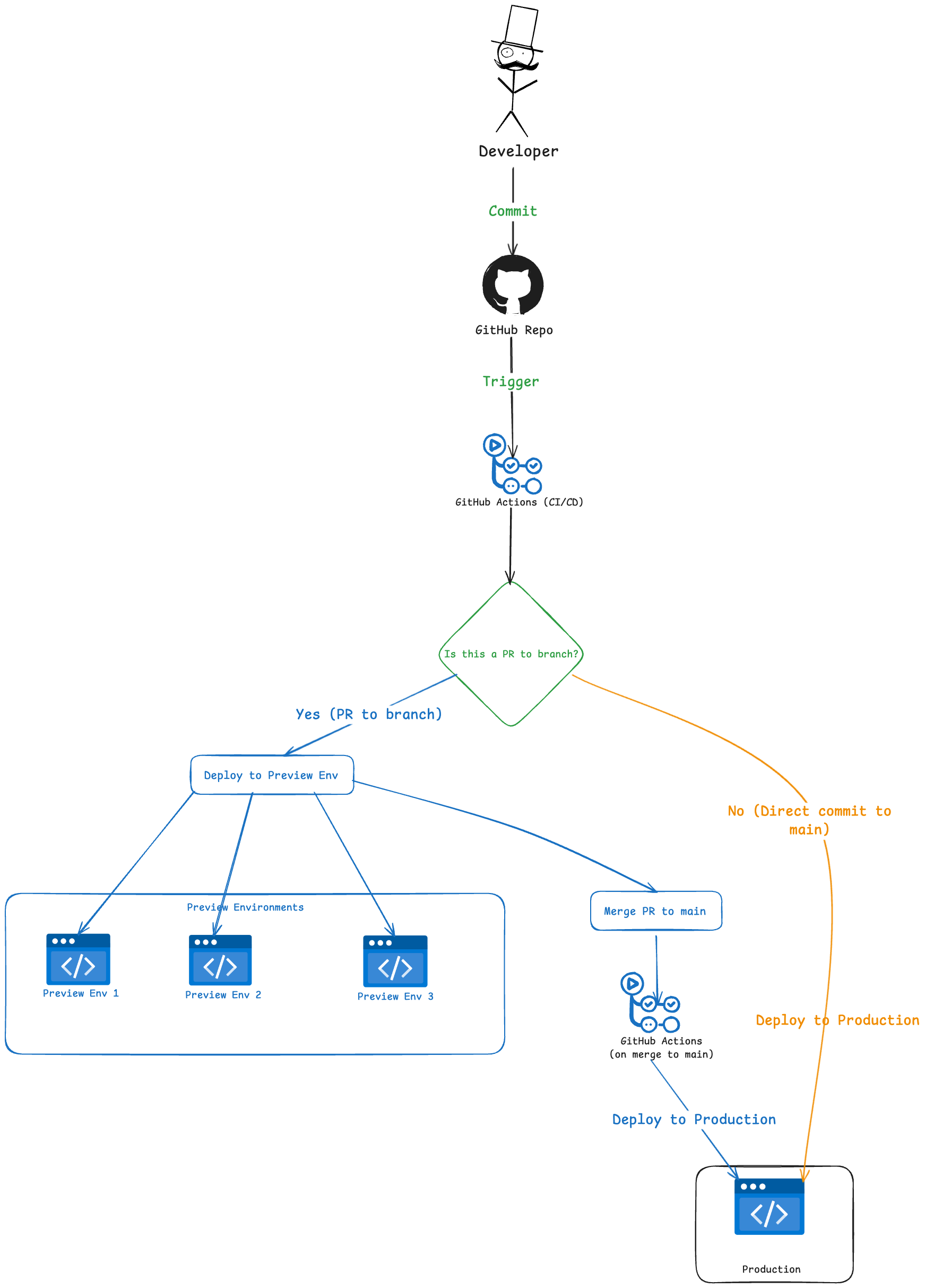
Here is the flow of operations
1. Code Initiation
The process starts with the Developer (Dev). The developer writes code and pushes their changes to the GitHub Repo. This push acts as a trigger for GitHub Actions, which begins the automated CI/CD pipeline.
2. The Decision Point (Branching Logic)
Once the GitHub Action is triggered, the system evaluates the nature of the update at the Is this a PR to branch? decision node:
- Path A: The Pull Request (PR) Flow (If "Yes")
- Path B: The Direct Commit Flow (If "No")
If the developer creates a Pull Request (PR) to a branch, the workflow focuses on testing and review:
-
Deploy to Preview Env: GitHub Actions automatically deploys the code to a temporary environment.
-
Parallel Previews: As shown in the Preview Environments subgraph, the code is deployed across multiple preview instances (Preview 1, 2, and 3). This allows stakeholders to review the changes in a live setting without affecting the production site.
-
Merge PR to main: Once the PR is approved and the previews are verified, the PR is merged into the main branch.
-
This merge triggers a second GitHub Action specifically designed for the main branch. Production Deployment: The code is then deployed to the Production environment.
If the code is committed directly to the main branch (bypassing the PR process):
-
The workflow skips the preview environments entirely.
-
GitHub Actions immediately initiates the deployment process for production.
-
The changes go live instantly.
5. Final State: Production Regardless of whether the code came from a merged PR or a direct commit, the final destination is the Production subgraph. The nodes highlighted in blue (Prod, Merge, etc.) represent the "Important" or critical path for live updates.
Prerequisites
- GitHub account
- An Azure subscription with appropriate permissions
The Stack
- Azure Static Web Apps
A little bit about Data Set
For this demo, I have created mock data to illustrate the functionality. The data will be hosted alongside the WebApp to facilitate the demo.
Implementation
1. Fork the Web App code
You could create your own Web code as you wish. The following is to fork the repository hosted demo web app code.
-
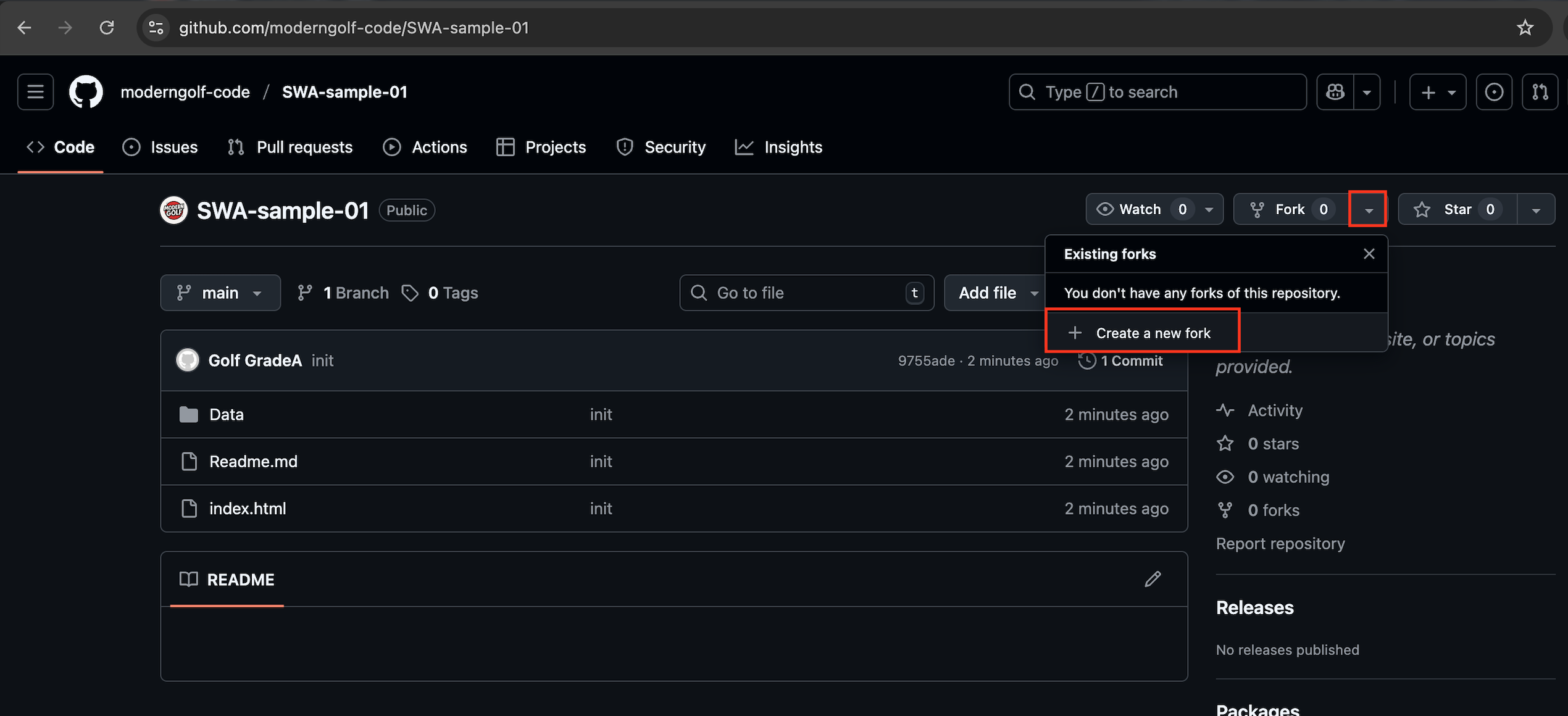
Go to GitHub Repo and fork Repo to your GitHub account
-
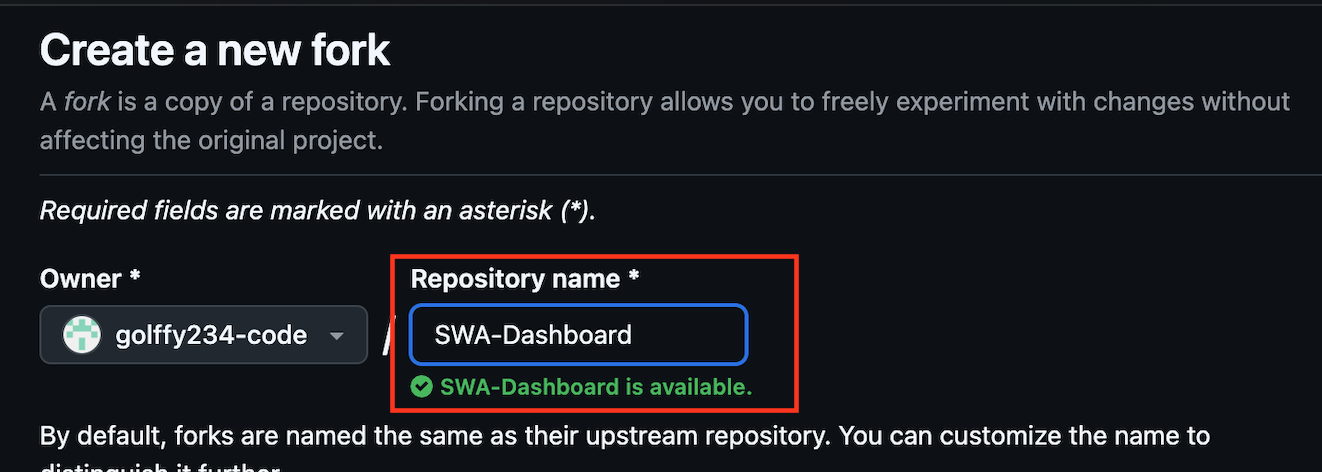
You can change Repository Name to anything.
2. Create Azure Static Web App
- Go to Azure Portal and Create a Resource
- Search for
Static Web AppandCreate
In Create Static Web App page
- Create new Resource Group
- Give Name for the Web App
- Hosting plan > Select
Free: For hobby or personal projects - Deployment details: Select GitHub and Sign In your GitHub account and Authorize Azure App Service
- Select Organization, Repository and Branch according to what you fork earlier.
- Build Details > Select Build Presents
Custom (detected)and keep the rest as is. - Click
Next Deployment configuration > - Deployment Authorization Policy : Deployment token
- Click
Review and Create> Create
3. GitHub
-
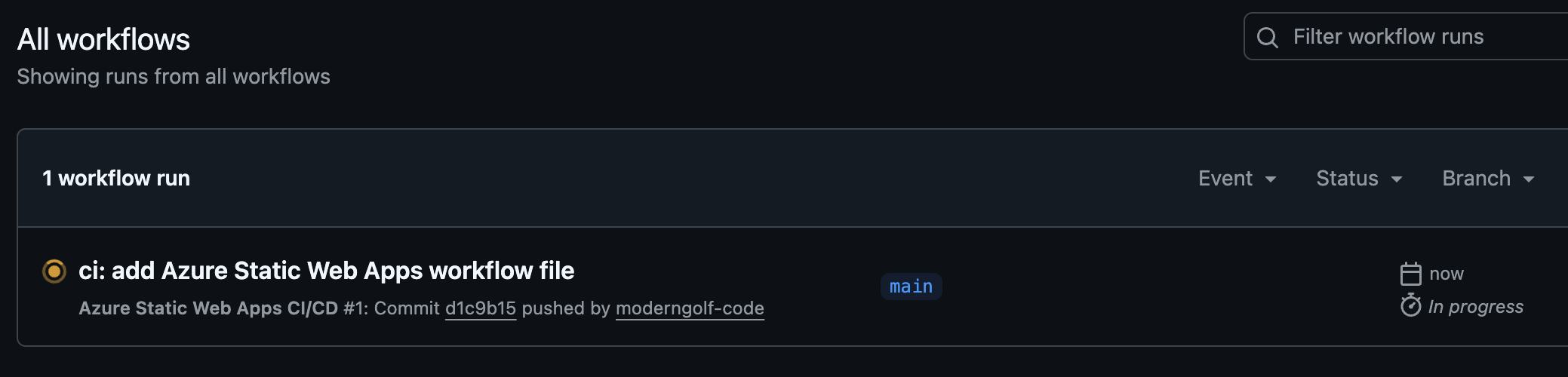
Go to GitHub
-
Click on the running workflow to see Logs
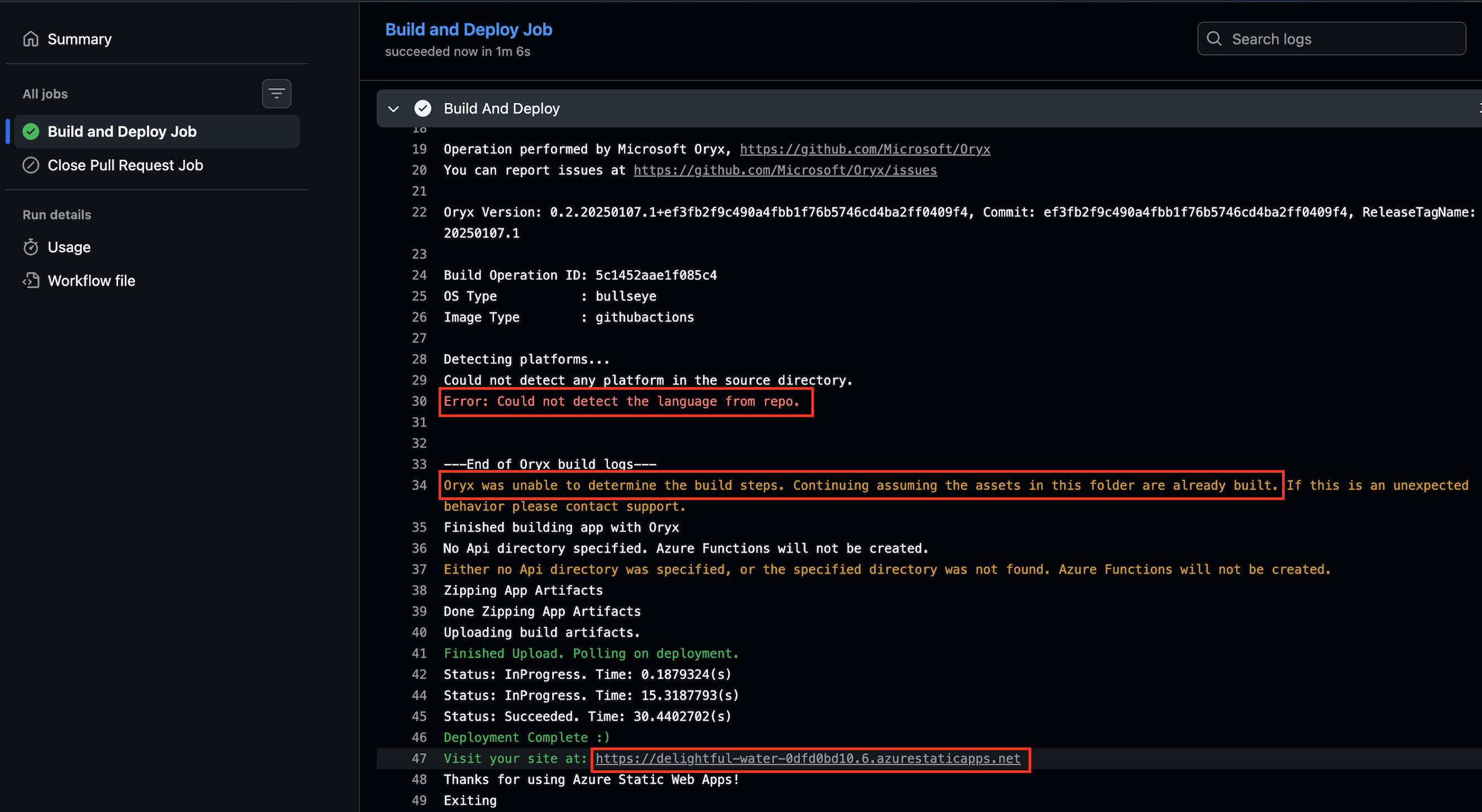
You can see that there's an error and warning.
Error: Could not detect the language from repo.
Oryx was unable to determine the build steps. Continuing assuming the assets in this folder are already built.
This is because our HTML doesn't need to be built, it's ready to publish right away. If the source code was other languages, Oryx will detect and build the renderable files.
You can also see that it published your web to https://xxxxxxx.azurestaticapps.net. You can try to visit yours.
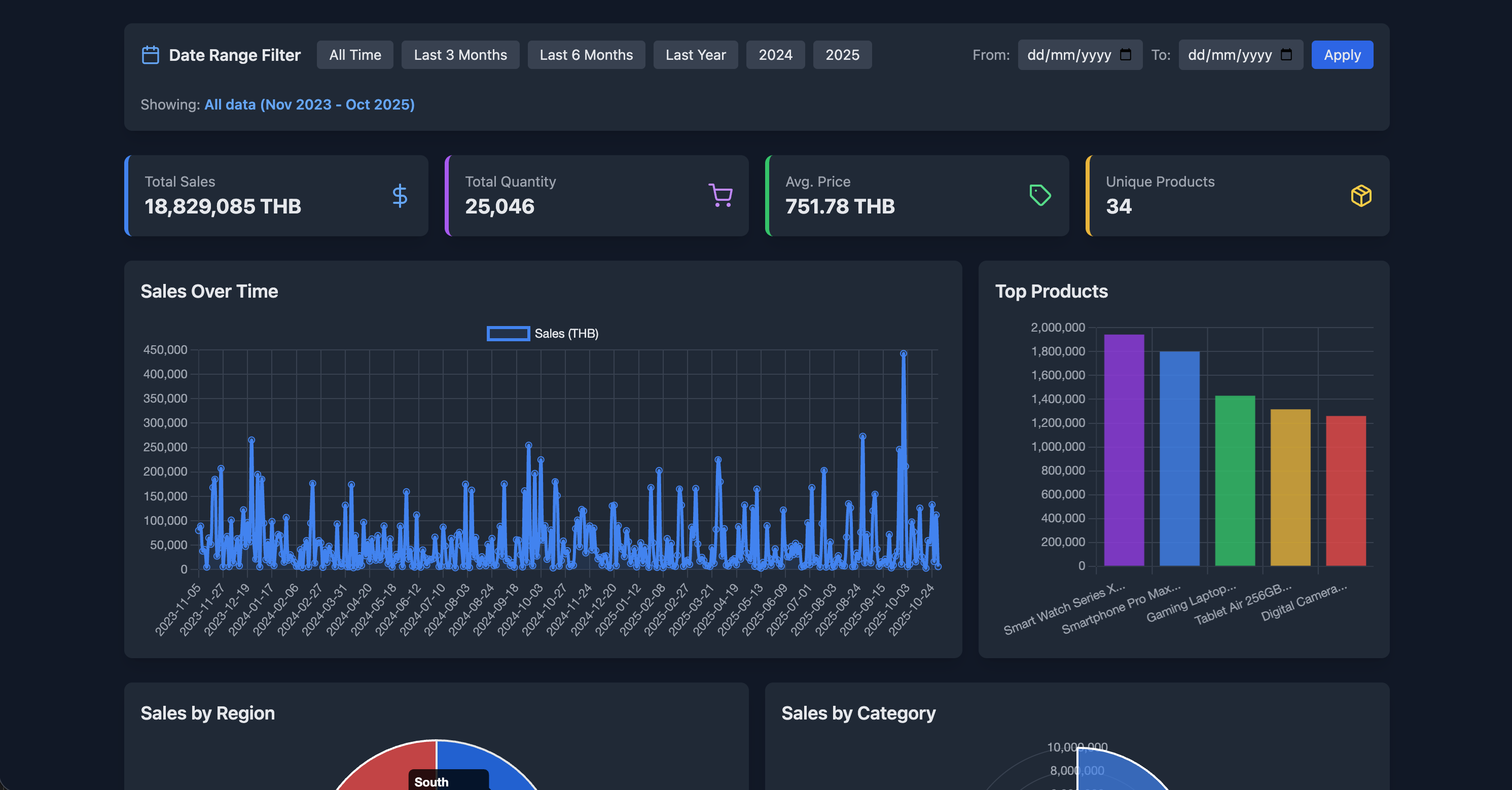
What happened?
- When we create the Static Web App, Azure connected to GitHub Repo and commit a YAML file (GitHub Action Workflow) to main.
- So the Workflow trigger to deploy directly to Production.
Create Branch and update the content
- Clone Repo to VSCode > Create Branch > Edit Index.html and commit
- Create a Pull Request Branch > main
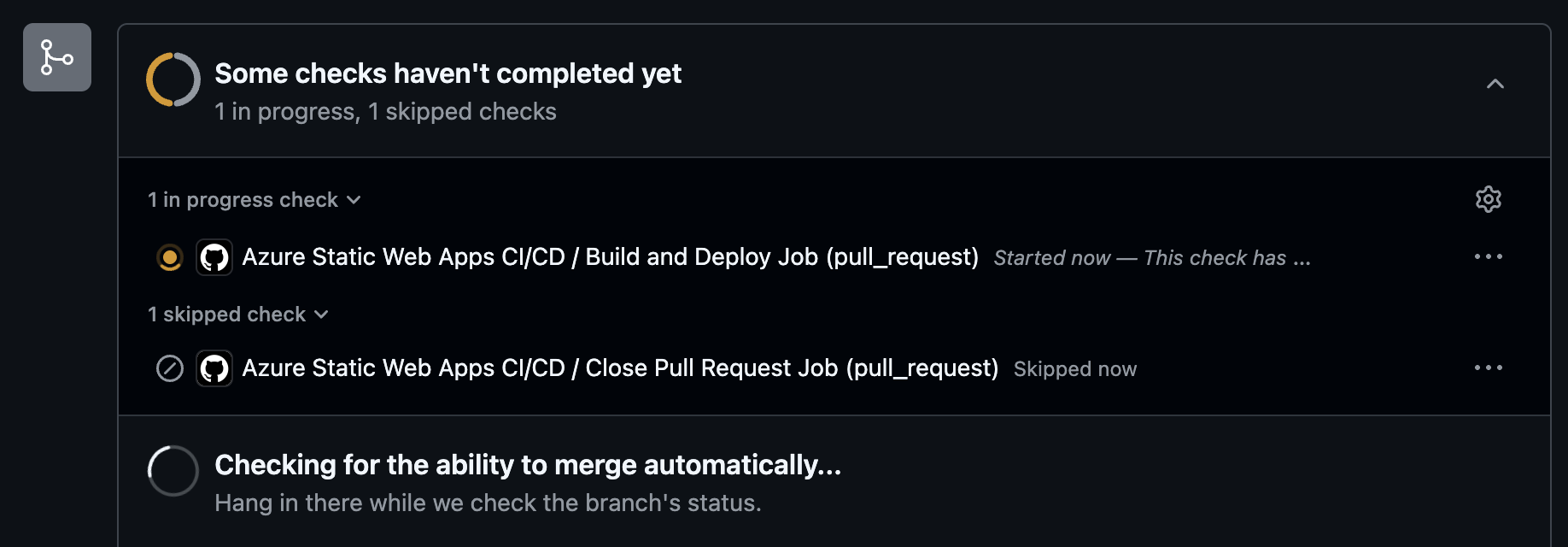
You can see that the Action triggered automatically. (CI) Click the running Workflow to see the log, You cans see that it's published to another URL. You can try to browse to the URL and see.
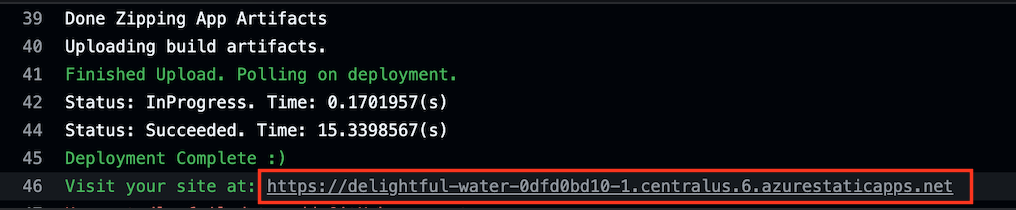
- Go to Static Web App Resource in Azure Portal
- Go to Settings > Environment
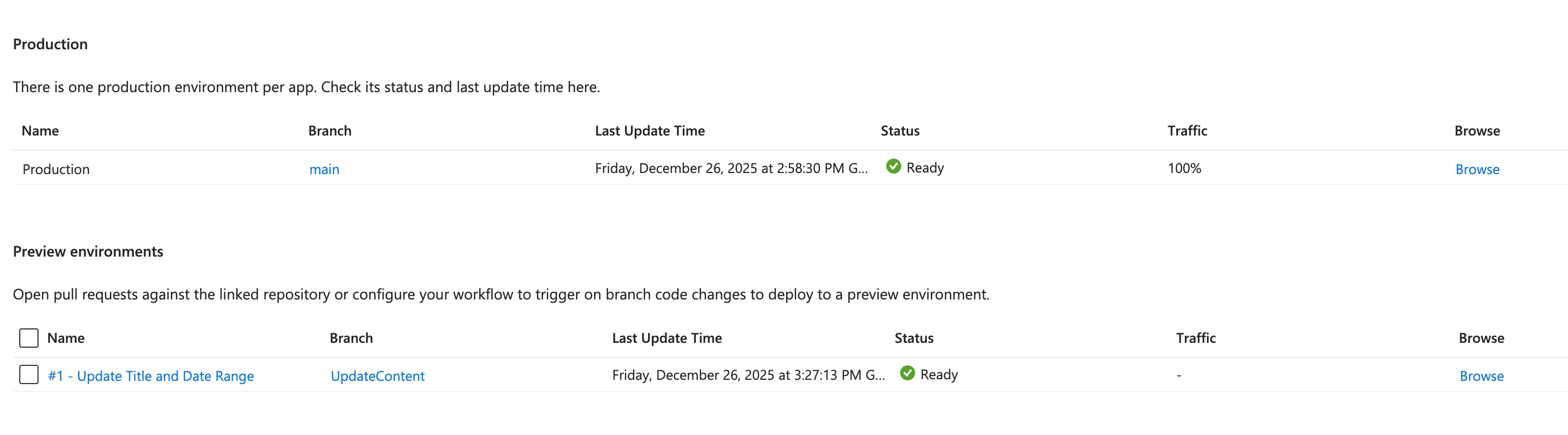
You can see under Preview Environment there's one entry. This is an environment from our PR to test if everything is working as expected.
- In GitHub portal > Pull Request > Select our
Pull Request - Now
Merge pull requestis ready after the checks have passed. Click onMerge pull request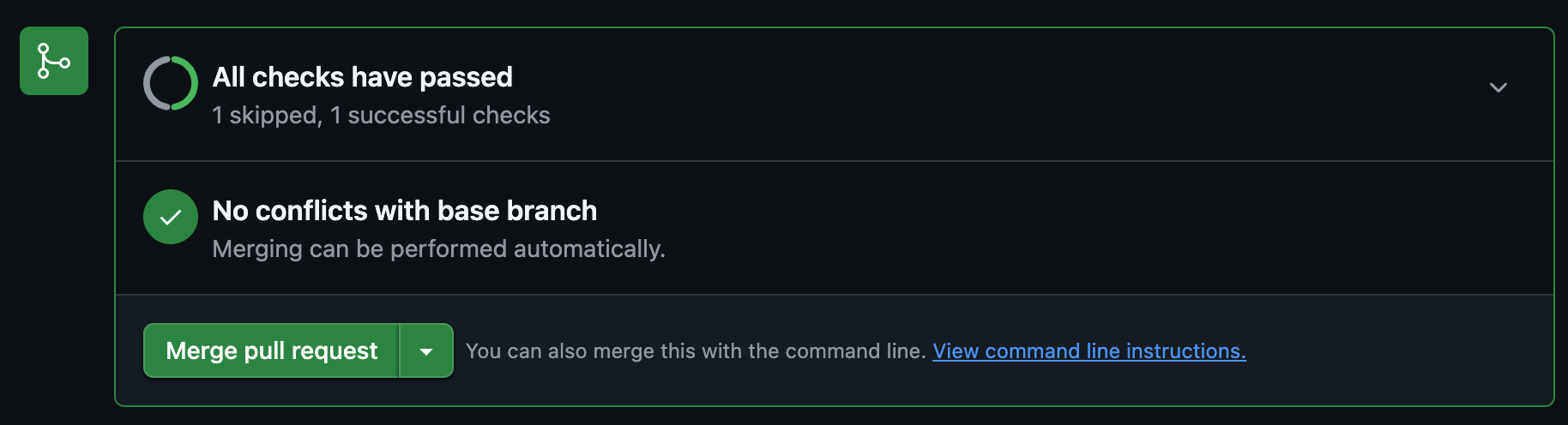
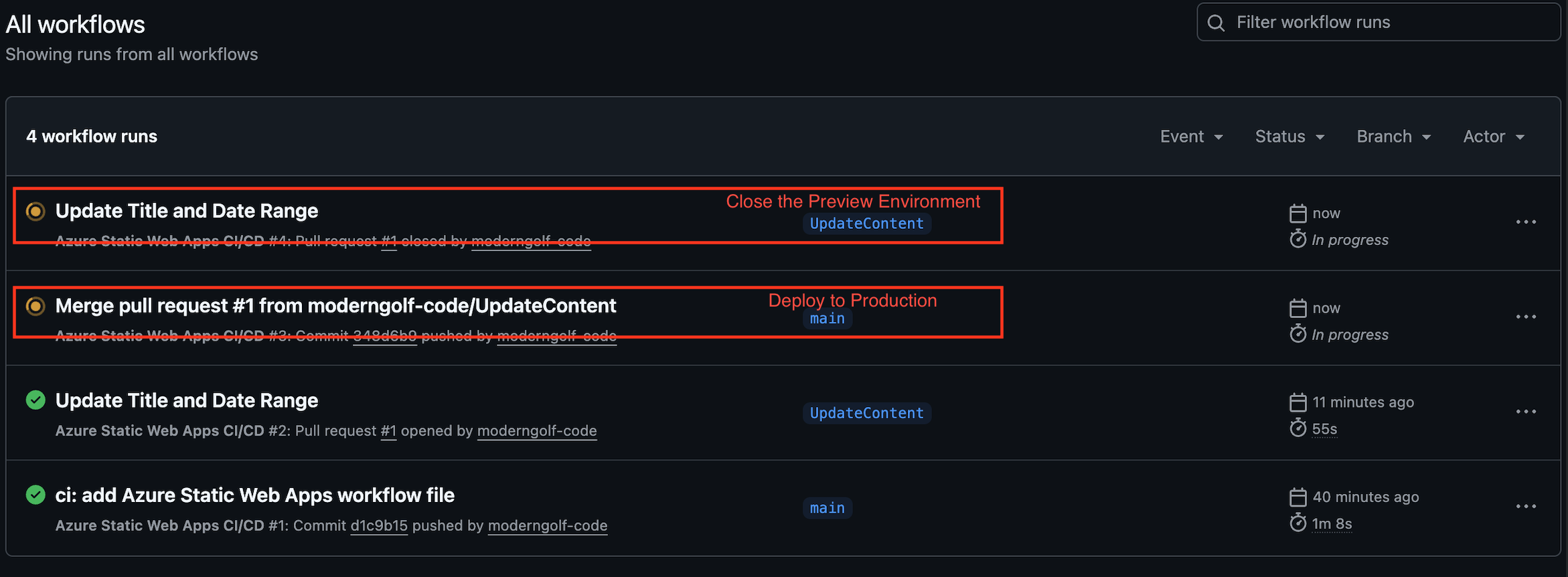
In Actions page, you can see there are 2 workflows running.
- It will close the Preview Environment slot that hosting our Web
-
It will deploy our web to Production Static Web App.
-
Go back to Static Web App Resource in Azure Portal
- Go to Settings > Environment
- Check under
Preview Environment. The entry has been removed and your modified web content has been deployed to Production.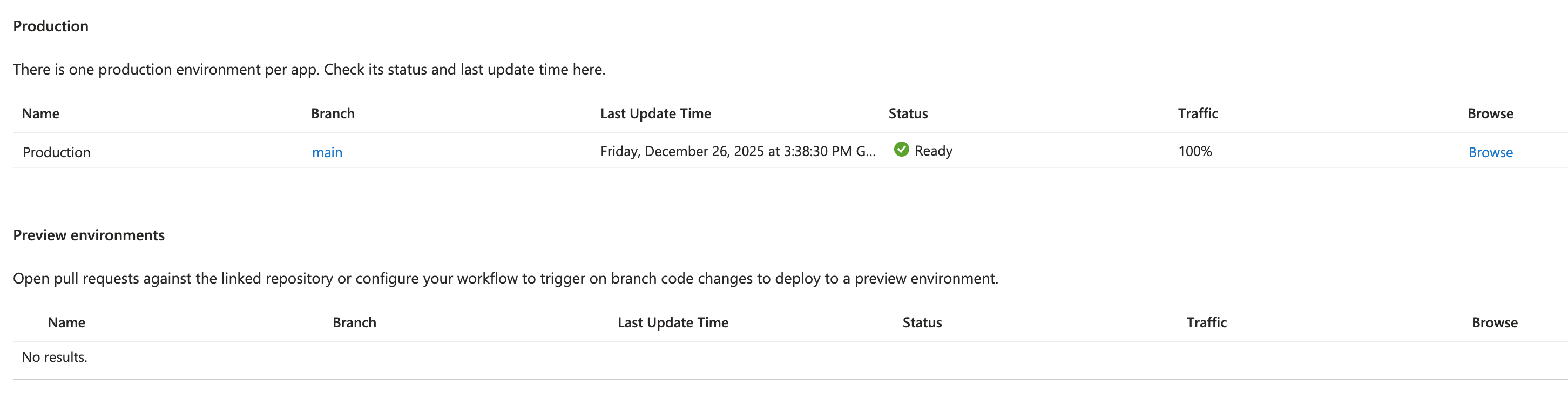
Wrap Up
Building a high-performance website doesn't have to come with a monthly bill or a headache over server management. By leveraging Azure Static Web Apps and GitHub Actions, we've built a workflow that is:
-
Cost-Efficient: $0 spent on hosting, SSL, or CI/CD pipelines.
-
Risk-Free: The use of Preview Environments means you can test data updates or UI changes in a live-link scenario before your users ever see them.
-
Scale-Ready: Since it's backed by Azure's global CDN, your simple CSV dashboard can handle 10 visitors or 10,000 without you lifting a finger.
Whether you are hosting a personal portfolio, a technical blog like this one, this "Serverless + GitOps" approach is the most modern way to ship web projects. If you’re looking for your next challenge, try layering in AI Search and Foundry LLMs to add a layer of intelligence to your architecture.
Here is example: AI Search and LLM integrated in Static Web App